
Overview of the configuration options on the job creation page in MOXIS 4.54
Content
This article provides an overview of the parameters that can be configured on the job creation page.
1. Configuration options for MOXIS jobs
The job creation page is at the heart of the job creation process. Here you can configure various settings, which are described in more detail below. In addition, you will find step-by-step instructions for creating a job in MOXIS here.
1.1 Creating job data
The following order data can/must* be entered in a job for an order to be processed:
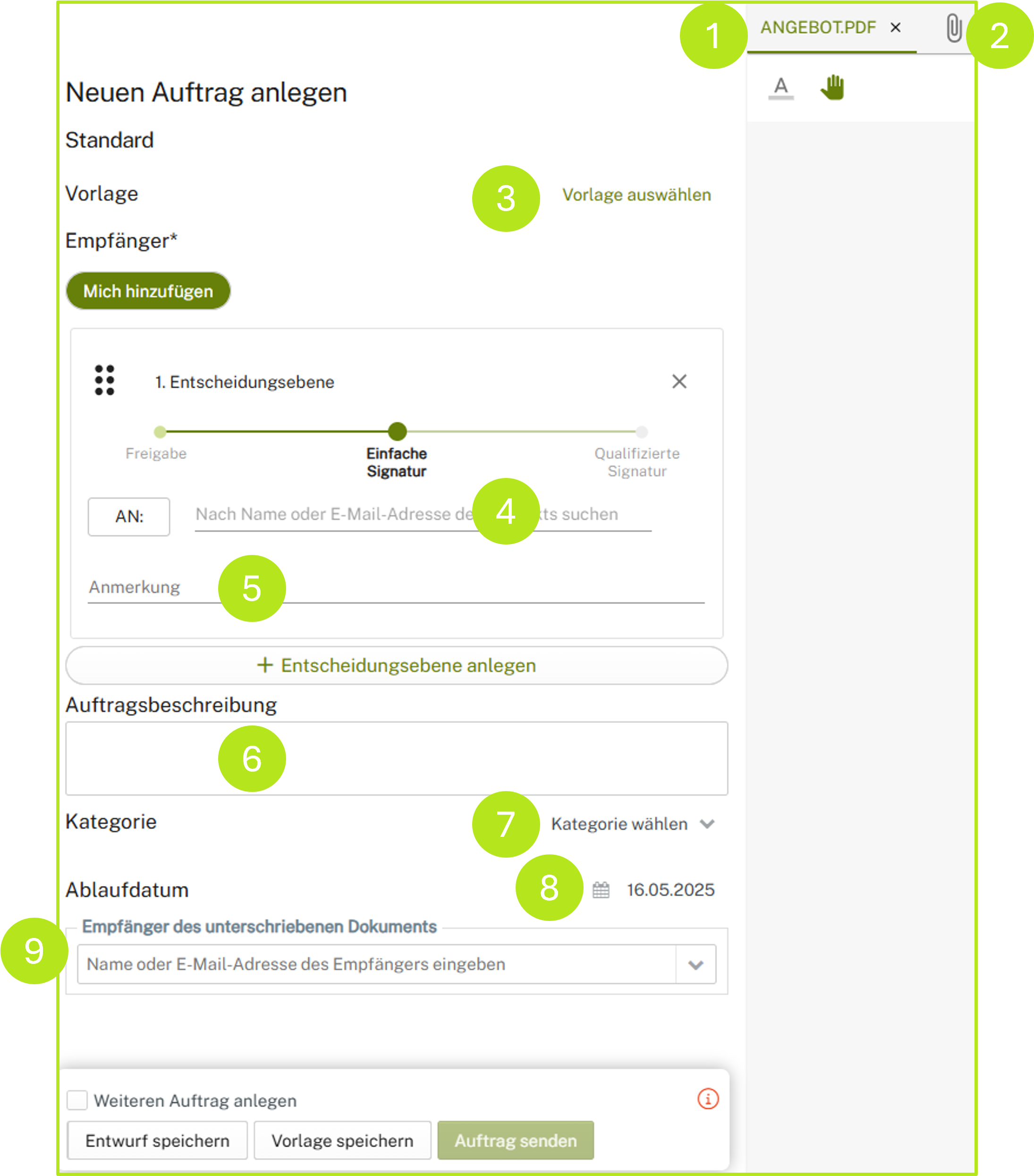
Figure 1: Set additional signature parameters
Main document*: The PDF document that is to be signed or approved (see figure 1 [1]).
Attachments: Up to ten attachments can be uploaded (see figure 1 [2]). Attachments are used to provide information to job recipients and are not signed in the case of a standard configuration. If the “PDF container option” is configured during the signing process, the “complete package” (consisting of the main document and attachments) is signed. In this case, the attachments are part of the main document. Depending on the configuration, attachments may be restricted to certain file types.

XiTip
External signers in MOXIS Guest can also upload attachments after or during the signing process. Please note: The uploading of attachments by signatories is currently (as of 10/25) limited to external signers in MOXIS Guest.
Select template: If a template has been defined, it can be selected here (see Figure 1 [3]).
Recipient*: *The recipients of the order must be listed here (see figure 1 [4]). Depending on the configuration, the search can be performed using first and last names or email addresses. Both registered MOXIS users and external signatories (optional) can be invited. Click on the [TO]-button to open the address book and add recipients directly from there.
Comments: In the comments section, you can leave comments and information for the signers at the individual iteration levels (see figure 1 [5]).
XiTip
Please note: This is also possible in MOXIS Guest for external signers.
Jobdescription:
Optionally, a description of the job can be provided (see figure 1 [6]).Category:
The job can optionally be assigned to a category (see figure 1 [7]).Expiration date*:
The expiration date (see figure 1 [8]) determines how long all persons involved in the job, signatories, and approvers have to complete it.Recipients of the signed document:
Enter additional recipients of the document who will receive the order after it has been signed (see figure 1 [9]).
XiTip
If you leave the job form while creating an order and switch to another page (home, orders, etc.), a pop-up window will appear (see figure 2). It will inform you that your changes have not been saved. Click on the [Stay on page]-button to continue editing the order. By clicking on the [Save Draft]-button, you save a draft and are then redirected to the overview page. If you want to discard the draft, please click on the [Leave Page]-button.
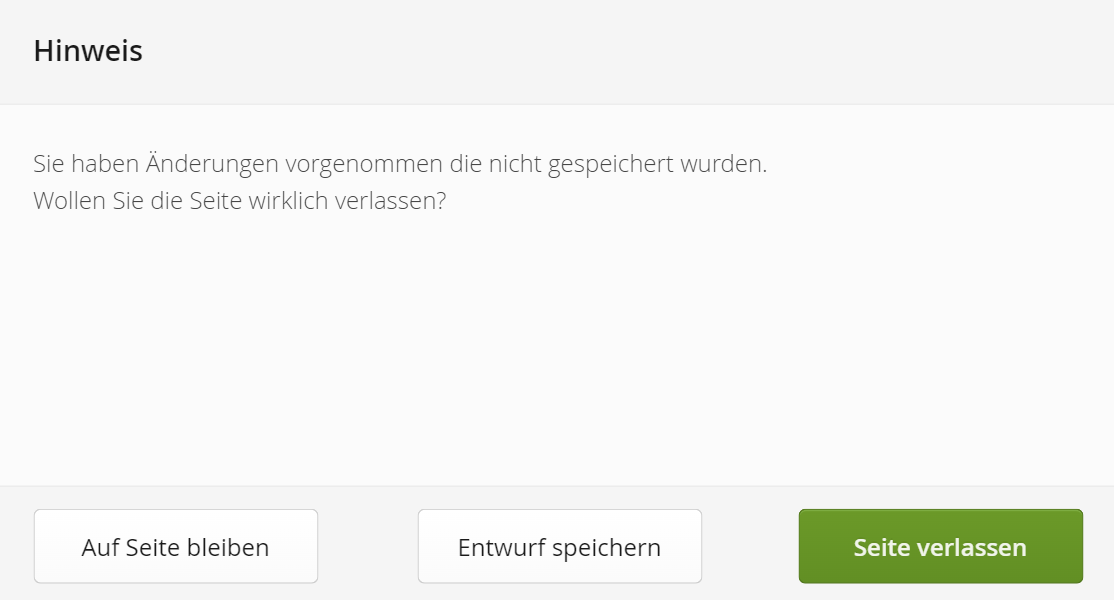
Abbildung 2: Hinweis auf nicht gespeicherte Änderungen