
[Business & Now Cloud] Use case: Initiate the signing process via the signature visualization
To initiate the signing process via the signature visualization, please click in the area designated for the signature (see figure 1).
Figure 1: Signature visualization
If you only need to place a signature on the document, the icon shown in figure 2 will be displayed. Click on it and continue with the signature process as usual.
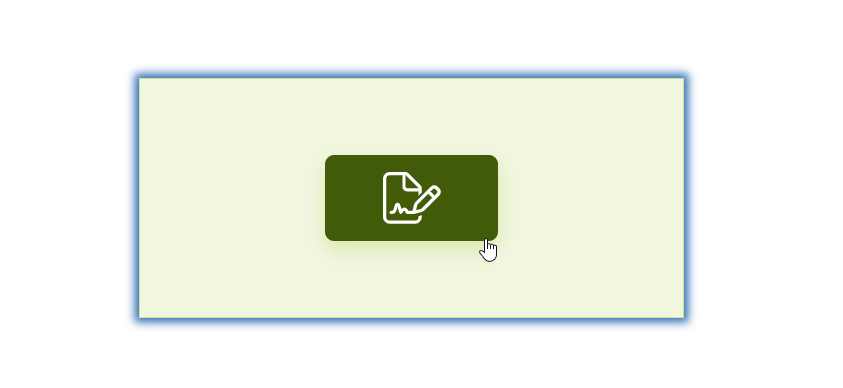
Figure 2: Option to sign in the signature visualization
If you need to add multiple signatures to the document, you can jump back and forth between the individual placeholders before signing by clicking on the arrow icon (see figure 3) in the signature visualization.
Please note: If multiple visualizations are enabled in your MOXIS instance, you can complete the document with a single signature process despite multiple signature fields. Once you have signed, you can no longer jump back and forth between the individual fields.
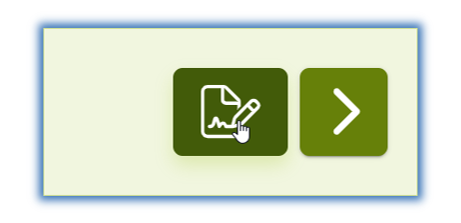
Figure 3: Arrow icon for navigating between multiple signature visualizations on a document