
Behavior of attachments in MOXIS: Preview, file formats, and error messages
Content
In addition to uploading documents, MOXIS offers the option of adding attachments to a job. This article explains how attachments work in MOXIS.
1. How different attachments behave in MOXIS
1.1. Photos
When you add a photo as an attachment, a preview is displayed so that you can check whether you have selected the correct file. To do this, open the tab with the corresponding file name. Scroll bars make it easier for you to check large files (see figure 1).
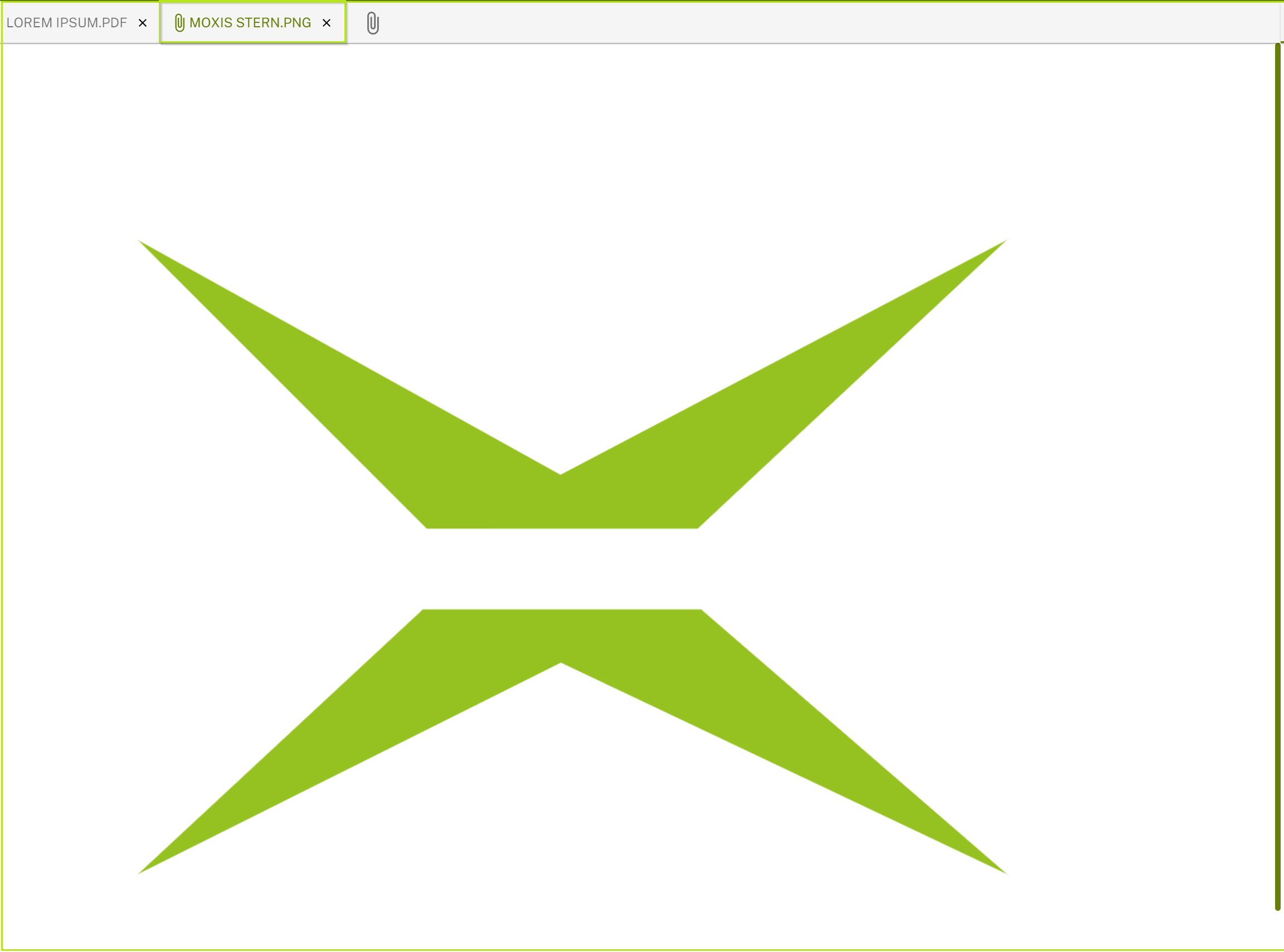
Figure 1: Large attachment with scroll bar on the right for checking
1.2. Further filetypes
Please note that certain file types (e.g. txt) are not displayed in the preview. If the upload of such files was successful, this will be indicated accordingly (see figure 2).
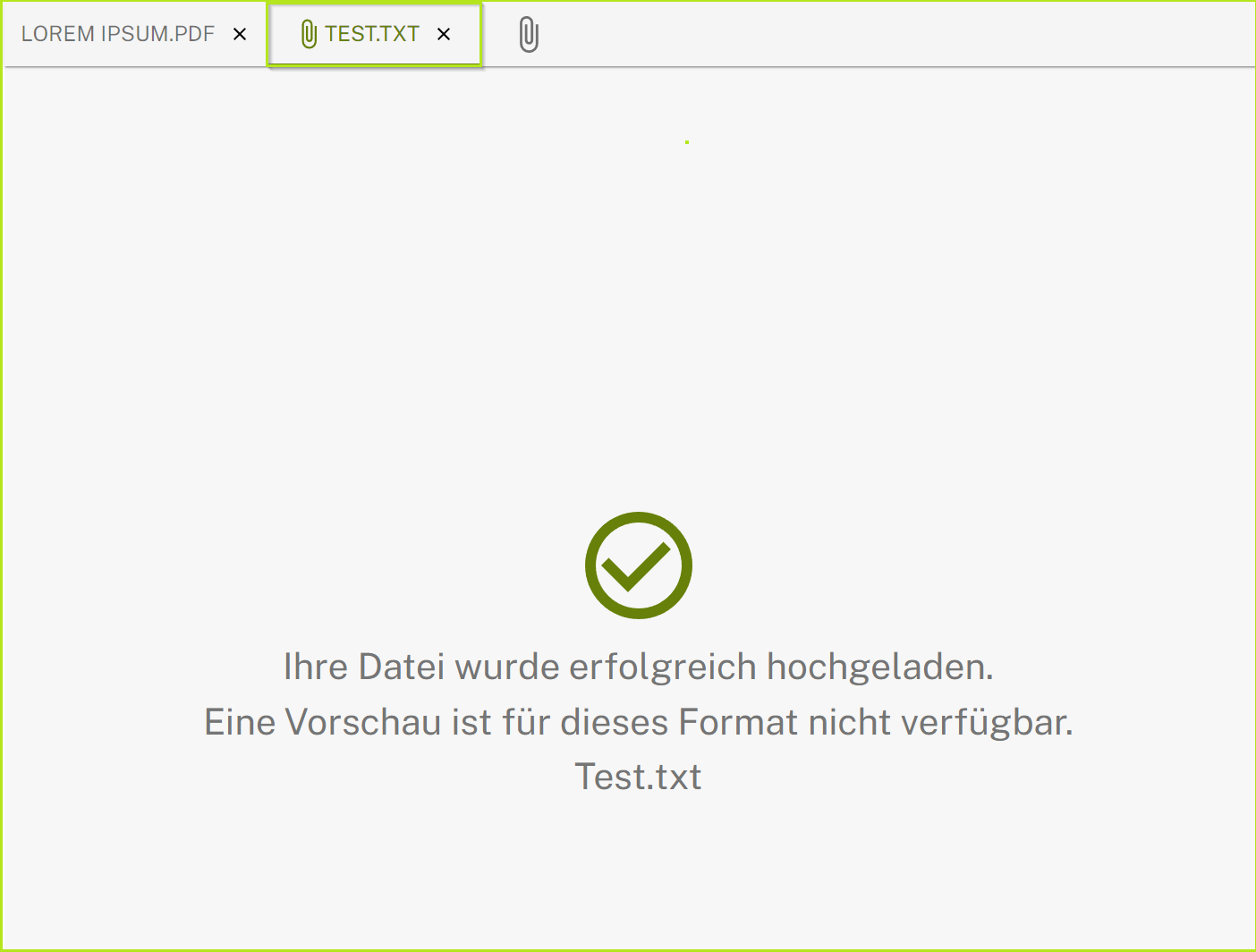
Figure 2: Preview due to filetype not available (.txt-filetype)
2. Error messages for unauthorized file formats
If you upload a file whose format is not permitted or which exceeds the permitted file size, you will receive a corresponding error message (see figures 3 and 4).

XiTip
The permitted formats and file sizes are displayed in the job form (see figure 4). They depend on the configuration of your MOXIS instance. This means that they can be customized by your administrator.

Figure 3: Error message for invalid file format

Figure 4: Error message when maximum size is exceeded