
MOXIS Guest: Job elegation for external signers - new up from version 4.54
Sometimes it is necessary for external signatories to forward or delegate a task that needs to be signed to another person. For this reason, MOXIS Guest has been enhanced with an additional feature for external signatories starting with version 4.54: job delegation. This article introduces you to the topic and explains step by step, using use cases, how you can make good use of this feature.
1 Delegation for external signatories in MOXIS Guest
The delegation function allows external signatories to delegate or forward their orders to be signed to other people. This can be important if the recipients of the order are not the only ones who need to sign or if they do not belong to the relevant group of people.
There are two ways to forward tasks to external parties:
Simple delegation (multiple possible)
Signing & delegating to additional recipients of the task
The different types are explained in more detail below (also using use cases).
1.1 Simple delegation
This involves forwarding a task to a single recipient.
Use case: An office employee receives an invoice with a request to forward it to the responsible managing director. They immediately forward this external task to the managing director with a request for approval by signature.
The managing director now receives the invoice and can approve (sign) or reject (not sign) it with a single click. In combination with the activated comment function, they can explain their decision in a comprehensible and transparent manner if necessary.
If a plugin such as the Teams plugin is used in advance, the invoice can then be immediately filed by the external client in a traceable manner and documented in addition to the integrated standard log.
1.2 Signing & delegating to additional recipients
This is an order that has already been signed by the recipient and is forwarded to an additional person after signing, who can also sign or forward the job.
Use case: An authorized signatory receives a job for signature. However, the signature of a member of the executive board is also required for the job to be fully executed.
After reviewing the contracts and signing them, the authorized signatory forwards the contracts to a member of the board for countersigning.
As in the first use case, it is possible to extend MOXIS with plugins to enable the client to manage documents and jobs efficiently.

XiTip
Please note: While approval by signature is possible in the delegation feature, it cannot be executed in MOXIS Guest for external signatories in a standard job without forwarding, as the signature quality “Approval” is not enabled for jobs with external signatories.
A job can be forwarded as often as desired.
2 Creating a job with delegation function
To create a job using the delegation feature, log in to MOXIS and create a new job as usual. The delegation feature is a standard feature starting with MOXIS 4.54. This is why the forwarding button described in the next chapter is always active.
If your administrator has also enabled the feature allowing additional signatures, this will be displayed in the iterations as well (see figure 1).
To allow additional signatures or invite people (see use cases in chapter 1), please check the box next to the corresponding option.
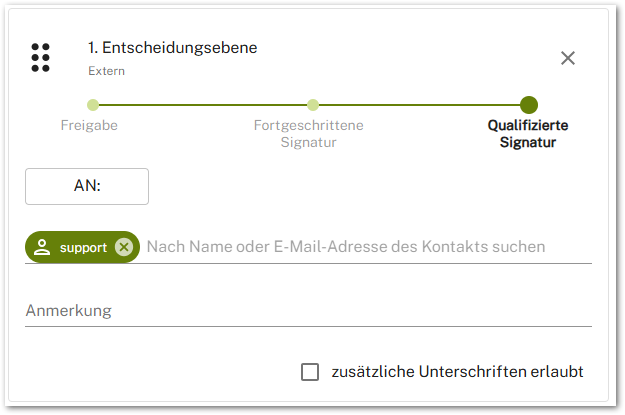
Figure 1: Adding additional signatures in the delegation feature
All other recipients who are invited to sign are added directly at the iteration level.
3 Tasks to be delegated from the perspective of external recipients
When an external recipient receives a new task, they have various options for dealing with it. The various scenarios are listed here.
3.1 Forwarding tasks to be delegated
When an external person receives a task, they can delegate it to a person of their choice without signing it themselves by clicking on the [Forward]-button (see figure 2 [1]).
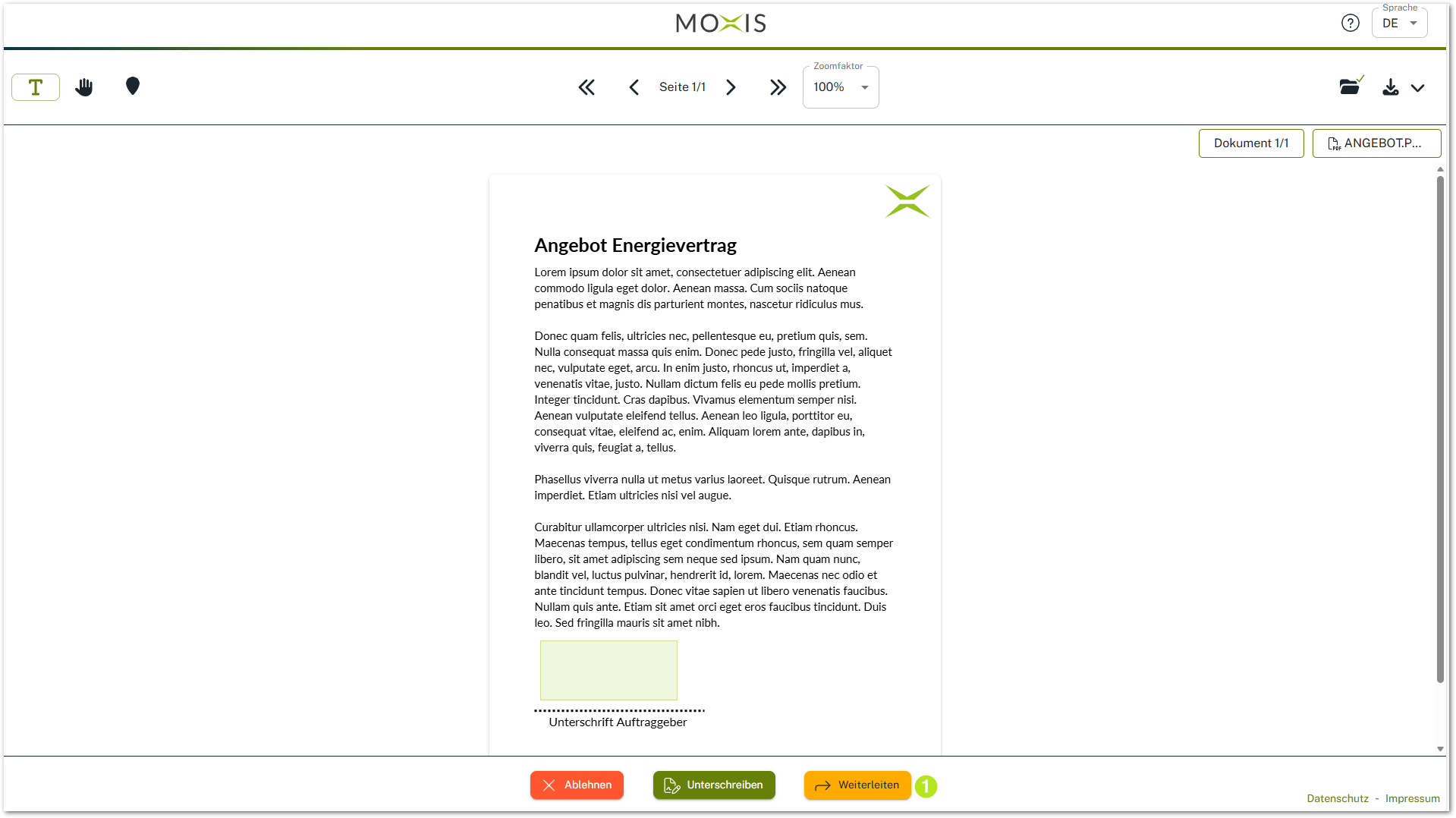
Figure 2: Forwarding a received order without signing it yourself
In the next step, the external person can delegate the task, specifying the name, email address, phone number, and optional forwarding instructions.
XiTip
Please note: You now have the following options:
You can simply delegate the order or
You can sign the order and then delegate it
This can be decided directly in the signature window.
Clicking on the [Forward]-button (see figure 3 [1]) completes the delegation process.
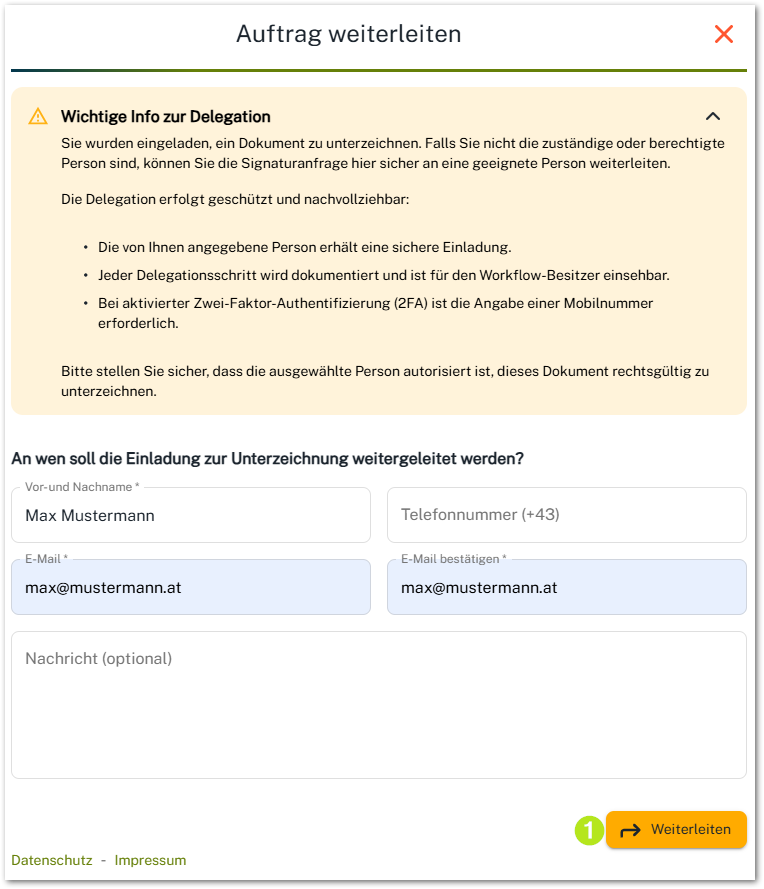
Figure 3: Specification of the data of the additional recipient for the delegation of a job
XiTip
Please note: Once the job has been created, the first recipient(s) of the job will no longer have access to it.
4 Delegated tasks from the perspective of other external recipients
Now you know what the view looks like from the perspective of the first external recipient. Let's now take a look at how other external recipients perceive the feature.
4.1 Communication with other external recipients
In order for another external recipient to know that they have received a job, they must be informed. This is done with an automatic email containing the link to the job and a brief explanation (see figure 4 [1]).
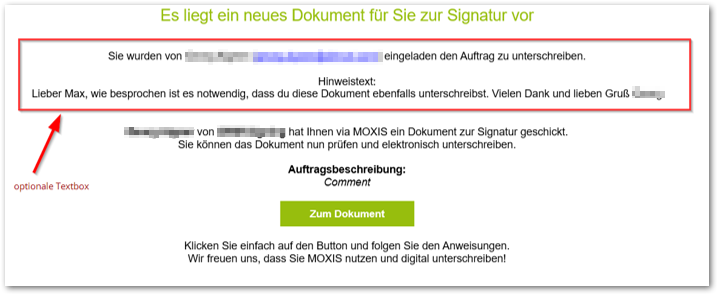
Figure 4: Email with link to the job
As soon as the additional recipient clicks on the link, the order interface opens and they receive a notification that a delegation has taken place, along with further explanations.
XiTip
Please note: For additional recipients, the signature must be placed on the document itself. After selecting the placeholder, the job must be saved.