
[Business & Now Cloud] The dashboard
The dashboard is the entry point in MOXIS (see figure 1). It provides you with an overview of all jobs created, managed, or to be signed by you. The dashboard view depends on the assigned role.
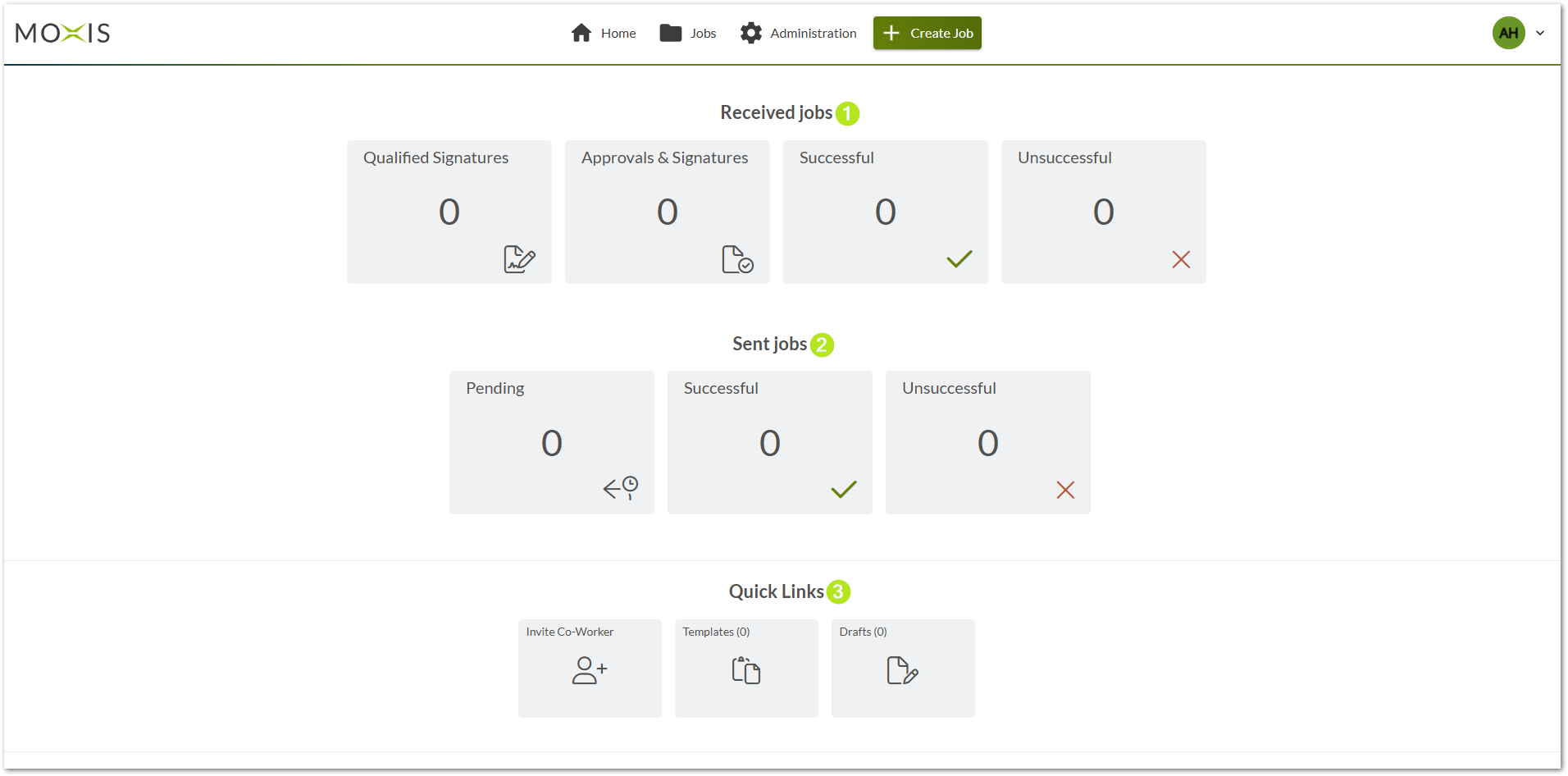
Figure 1: The dashboard
If you are assigned the right to sign documents (sign and/or approve), the respective tiles are displayed in the Received jobs area according to your role.
If you are allowed to create jobs, the corresponding tiles are displayed in the area Sent jobs.
Drafts and templates can be managed from the Quick Links area. You can as well invite Co-Workers (provided you have the corresponding assigned rights).
When you open your MOXIS account for the first time, you must confirm that you have read the service message regarding signature qualities (see figure 2). Please do so by checking the corresponding checkbox.
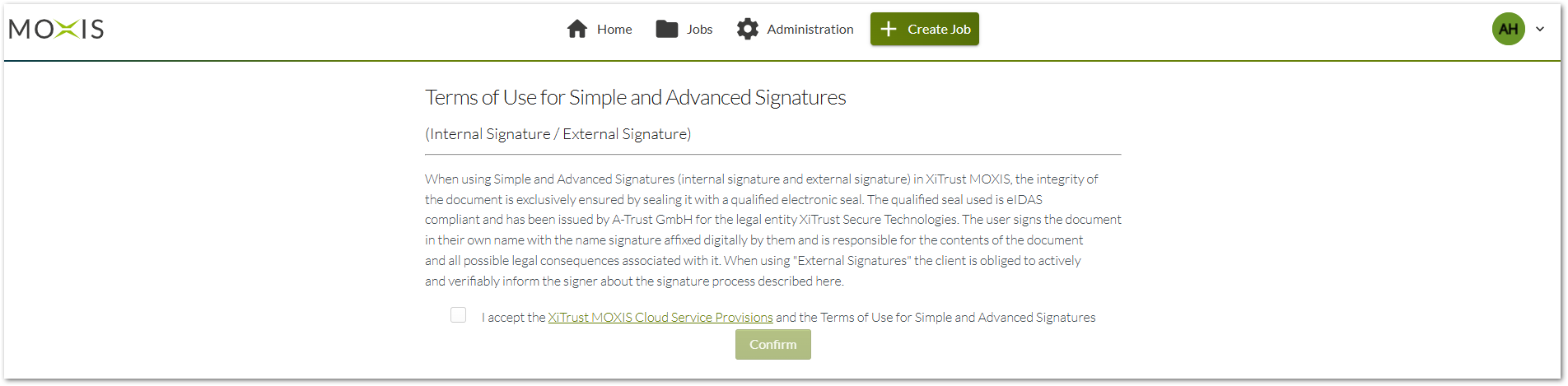
Figure 2: Service message regarding signature qualities
You will also be informed that you need to complete your profile to be able to use MOXIS to its full extent (see figure 3).
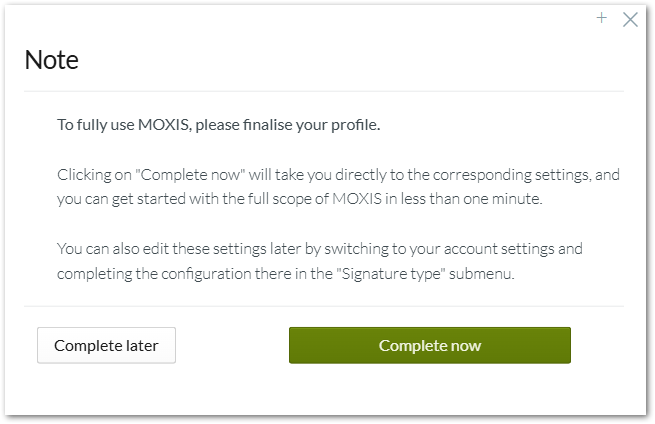
Figure 3: Complete your profile
The Complete now button (see figure 3) will take you directly to the account settings. If you want to do this later, click the Complete later button. As long as you have not completed your profile in the Signature type menu, you will see this pop-up after logging in.

Please note: Jobs can be created alternatively via Explorer to MOXIS in the Business Cloud, which saves time, money and resources.