
PDF/A conversion new in MOXIS version 4.54
You guessed it: the letter “A” in PDF/A stands for archiving. The first version of the PDF/A format was developed in 2005 with a focus on long-term document archiving. Now it is also available in MOXIS. In this article, you will learn everything you need to know about PDF/A conversions and which settings are important for the feature to work smoothly.
1. What is the difference between a PDF and a PDF/A file?
PDF/A is a variant of the standard PDF. Since it was developed for the long-term archiving of documents, the format has certain characteristics. For example, the PDF/A format does not support the embedding of audio and video files, as special software would be required to archive or play the files. Graphics and fonts must also be embedded directly in the document.

XiTip
Please note that PDF/A-compliant files cannot be encrypted.
2. What types of PDF/A are there?
There are four variants of the PDF/A standard series:
PDF/A-1 The original version of the converted PDF/A file contains fonts, illustrations, images, graphics, hyperlinks, etc. PDF/A-1 is available in two levels of conformity (PDF/A-1a and PDF/A-1b).
PDF/A-2This newer version allows the compression of graphics, PDF layers, and the use of transparent elements. PDF/A-2 is available in three levels of conformity (PDF/A-2a, PDF/A-2b, and PDF/A-2u).
PDF/A-3: Starting with the version released in 2012, any file types and raw data can be added to a PDF/A document. PDF/A-3 is also available in three levels of conformity (PDF/A-3a, PDF/A-3b, and PDF/A-3u).
PDF/A-4The latest development in PDF/A documents is available in two levels of conformity (PDF/A-4e, PDF/A-4f).
3. How to activate PDF/A conversion as an administrator
PDF/A conversion is a feature that comes with MOXIS Enterprise version 4.54 and higher. However, it is not activated by default. If necessary, you can activate it in your role as MOXIS administrator. This step-by-step guide shows you what to look out for when activating it.
3.1. Step 1: Activate the PDF/A conversion option
To do this, navigate to the Documents tab in the process configuration (see figure 1 [1]) and check the box next to PDF/A conversion (see figure 1 [2]).
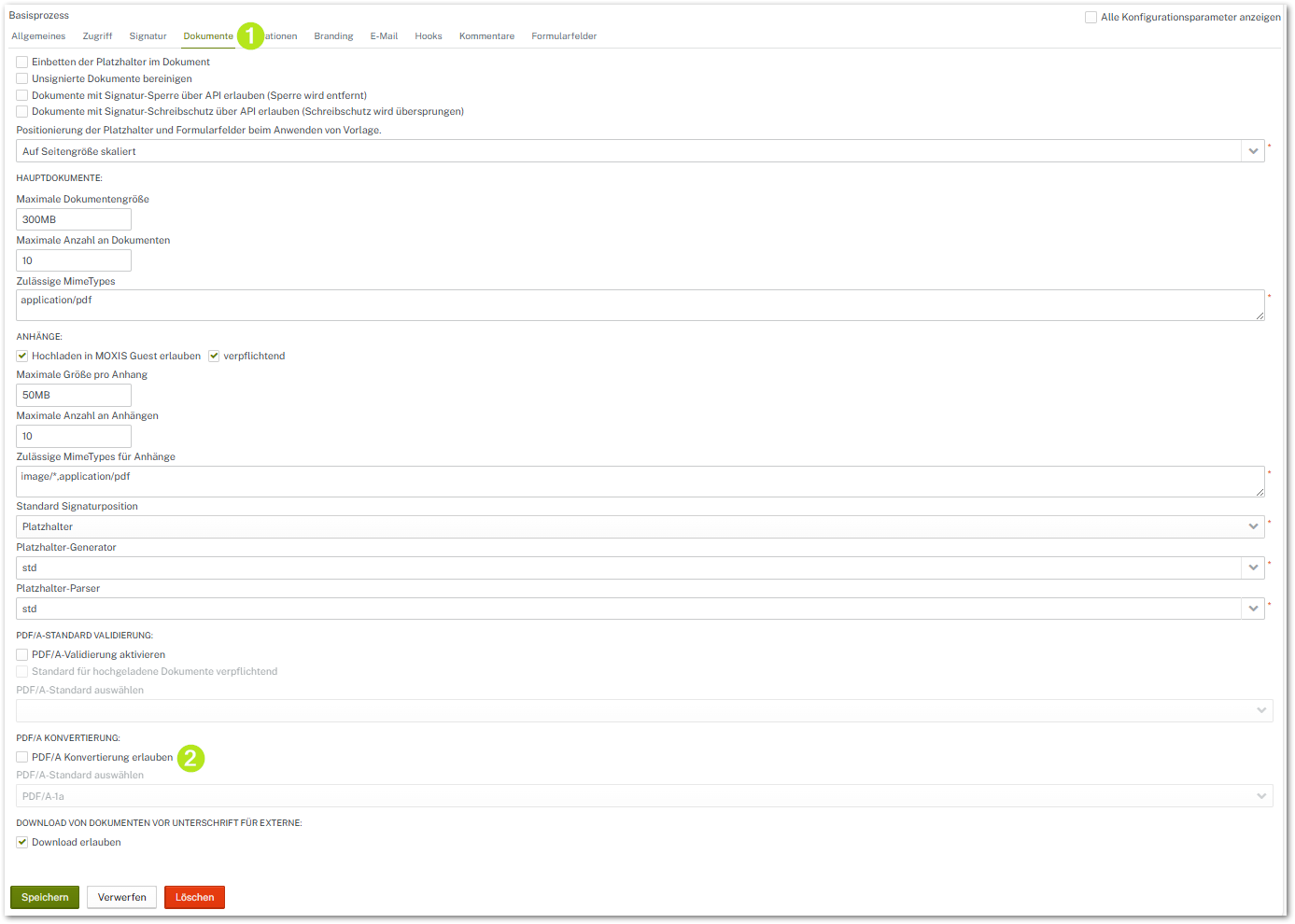
Figure 1: PDF/A conversion
XiTip
Please note: Until all default settings have been configured, a red exclamation mark will appear next to the parts of the process configuration that need to be configured (see figure 2 [1]). Once the exclamation mark disappears, you have successfully completed the PDF/A configuration.

Figure 2: Call sign indicates incomplete PDF/A conversion
3.2. Step 2: Select your preferred PDF/A standard
To do this, open the drop-down menu in the Select PDF/A standard section (see figure 3). Now select your desired standard.
XiTip
During the basic configuration by XiTrust, it is possible to limit the number of standards to be selected. If you wish to do so, please contact your XiTrust representative.
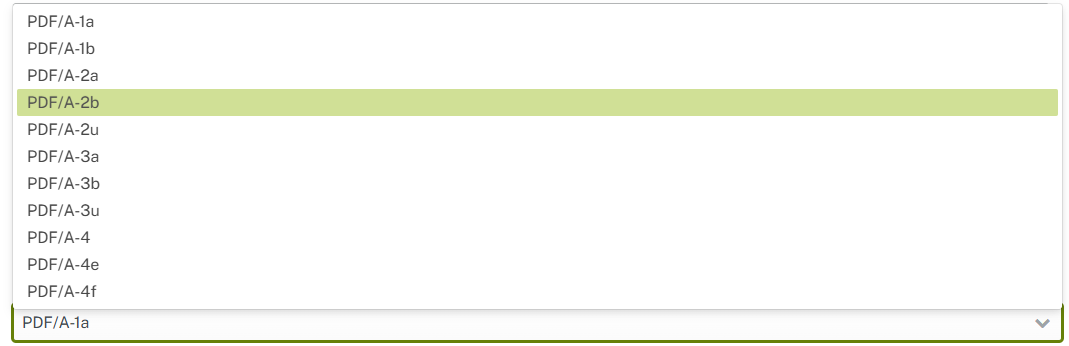
Figure 3: Select PDF/A standard
3.3. Step 3: Ensure that PDF/A validation is disabled
This is the case if the checkbox in the PDF/A Standard Validation section is not selected (see figure 4 [1]).
XiTip
Please note that you cannot save the settings in this tab until you have completed step 4.

Figure 4: Disabled PDF/A Standard Validation
3.4. Step 4: Ensure that all settings in the Form Fields tab are disabled
To do this, navigate to the Form Fields tab (see figure 5 [1]). Make sure that both checkboxes are deactivated (see figure 5 [2]) and click on the [Save]-button (see figure 5 [3]) to save your settings.
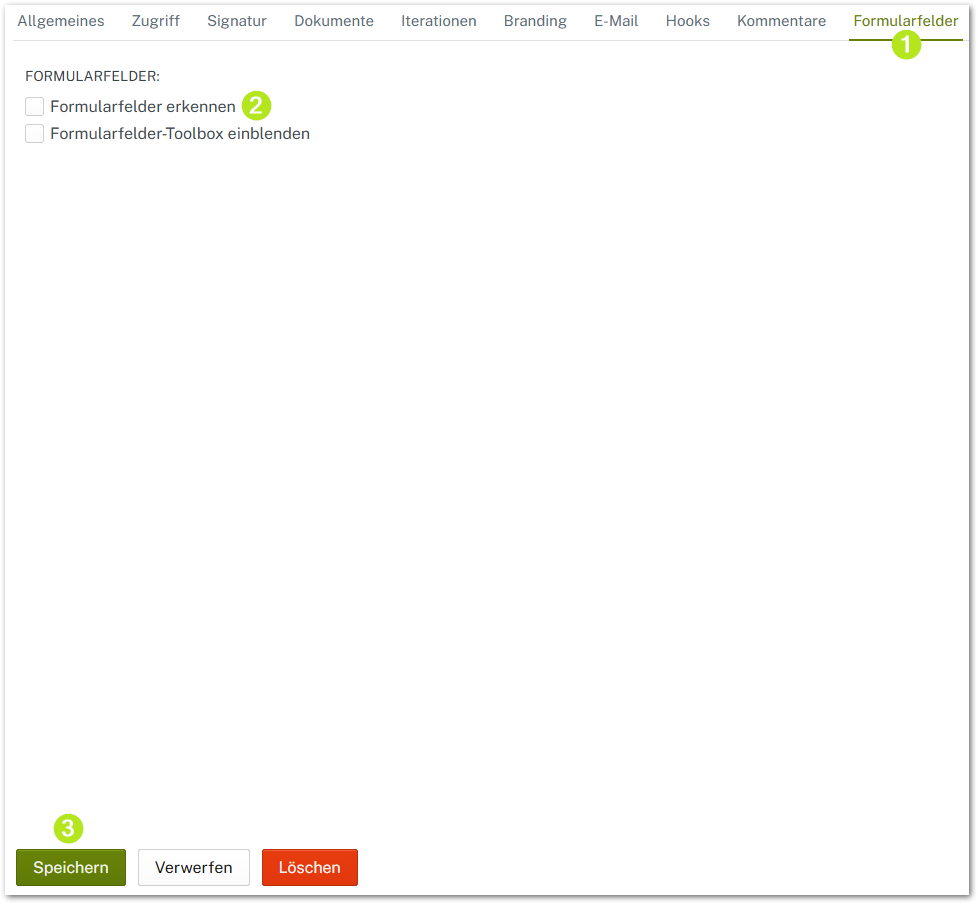
Figure 5: Deactivated form field settings in the process configuration
3.5. Step 5: Now save your settings in the Documents-tab
To do this, click on the [Save]-button at the bottom of the page.
3.6. Step 6: Check the reference in the Create Bean in the General tab
To do this, navigate to the General tab and check the box next to Show all configuration parameters (see figure 6 [1]) .
You will now see additional configuration parameters, known as beans. The MOXIS Create Bean is important for configuring PDF/A conversion (see figure 6 [2]). Please ensure that this is set to defaultStdCreateBean or wordStdCreateBean.
XiTip
Select the bean that is right for your purposes using the drop-down menu. The MOXIS creation bean must not be set to defaultStdCreateBeanWithPDFContainer under any circumstances. If you have any questions about configuring the beans, please contact the XiTrust support team at servicedesk@xitrust.com.
To complete the process, please click on the [Save]-button.
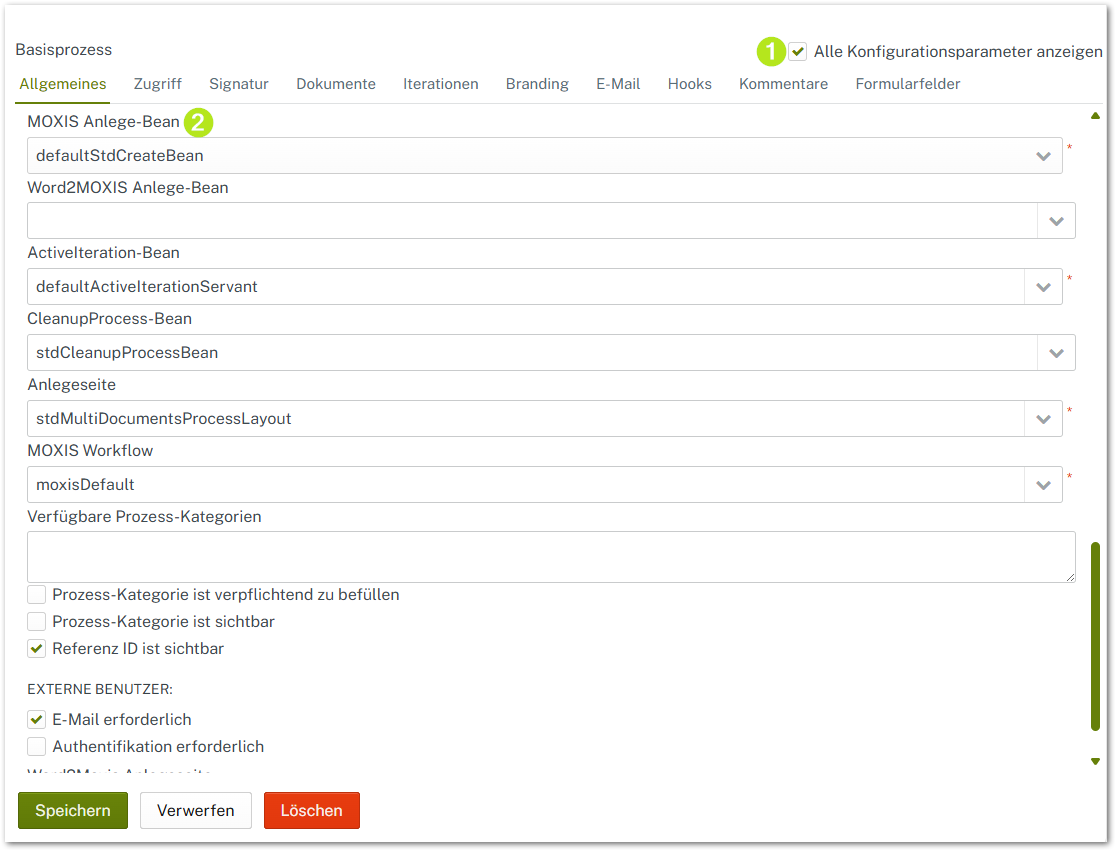
Figure 6: General tab with configuration parameter view activated
3.7. Step 7: Congratulations! You can now use the PDF/A conversion.
XiTip
Please note: More than one PDF can be converted during the conversion process. The application can also be used via Office2MOXIS.
4. PDF/A conversion restrictions
Please note that PDF/A conversions are subject to restrictions resulting from the technical implementation of the components, which cannot be changed at present (as of 11/2025). These restrictions apply to the following areas:
PDFs with signature sheets
It is not possible to convert PDFs with signature sheets to any PDF/A format, as these are lost during the process because they are not recognized as signature sheets.
XiTip
Once the PDF/A function in MOXIS has been fully configured and activated for a process, job creators will no longer be able to select the “Signature sheet” option when creating a new order within that process. The option is grayed out (see figure 7 [2]). In addition, processes with PDF/A functionality are marked with a corresponding note on the job creation page (see figure 7 [1]).

Figure 7: Order creation page in MOXIS in process with PDF/A conversion enabled
If an attempt is made to upload a document with a signature sheet, the client will receive an error message (see figure 8).
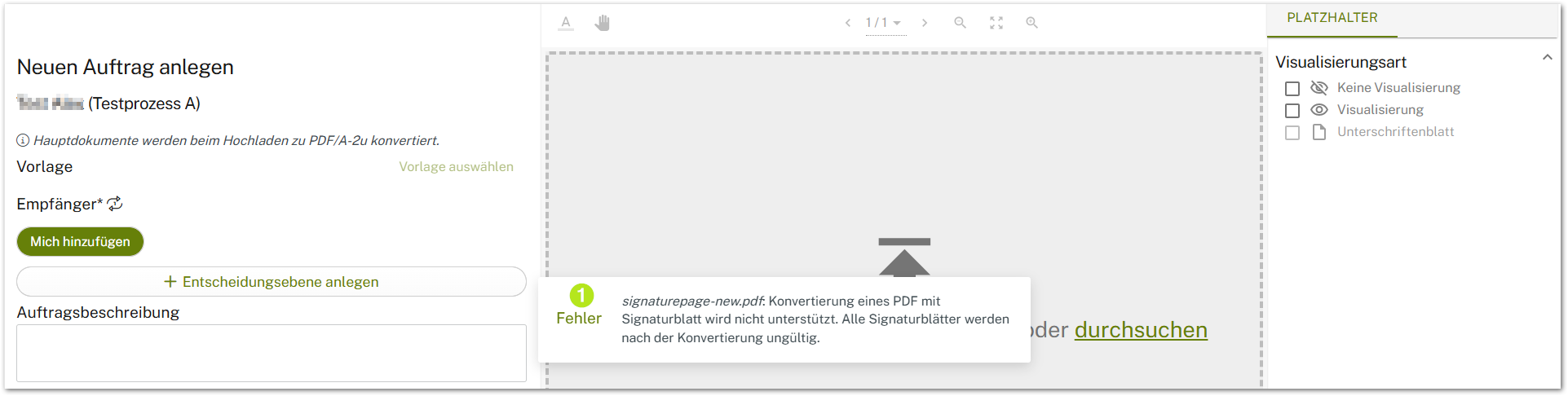
Figure 8: Error message when uploading a document with a signature sheet in MOXIS during a process involving PDF/A conversion
Pre-signed PDFs or PDF/As
Since the pre-signature is removed during the conversion process for documents that have already been signed, the conversion of pre-signed documents is not supported. If clients nevertheless attempt to create a job with such a document, they will receive an error message (see figure 9 [1]).
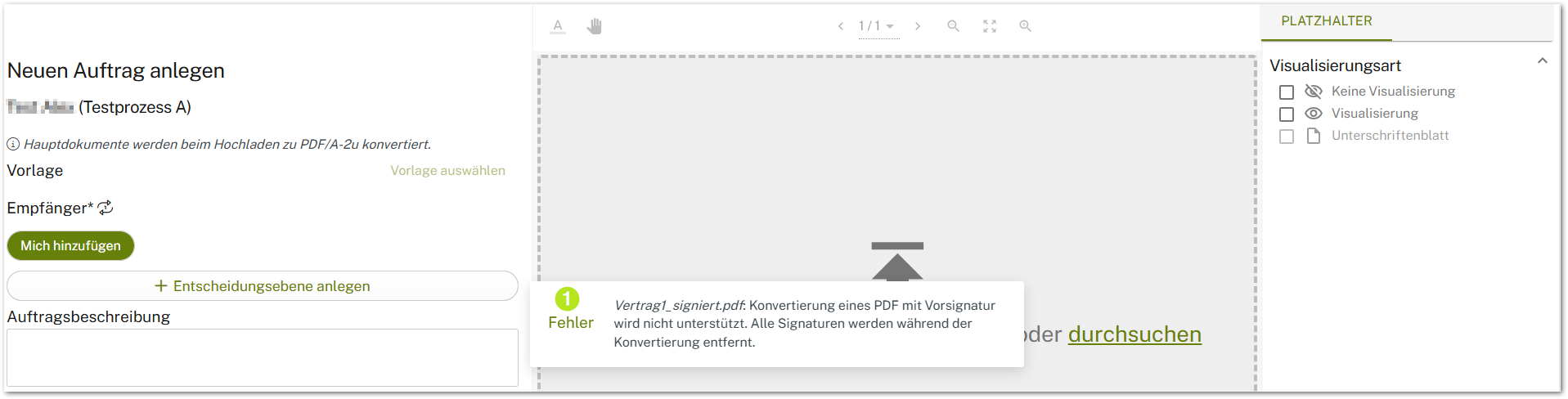
Figure 9: Error message when uploading a document with pre-signature in MOXIS during a process involving PDF/A conversion
PDF containers
PDF containers cannot be converted to PDF/A format. If clients nevertheless attempt to create a job with such a document, they will receive an error message (see figure 10 [1]).

Figure 10: Error message when uploading a document (PDF container) to MOXIS during a process involving PDF/A conversion
Documents already converted to PDF/A format
Documents that have already been converted to PDF/A format can only be used if the document to be signed has the same standard as the PDF/A target format.
In other words, a PDF/A-2u format can only be “converted” to a PDF/A-2u format. If clients nevertheless attempt to create a job with such a document, they will receive an error message (see figure 11 [1]).
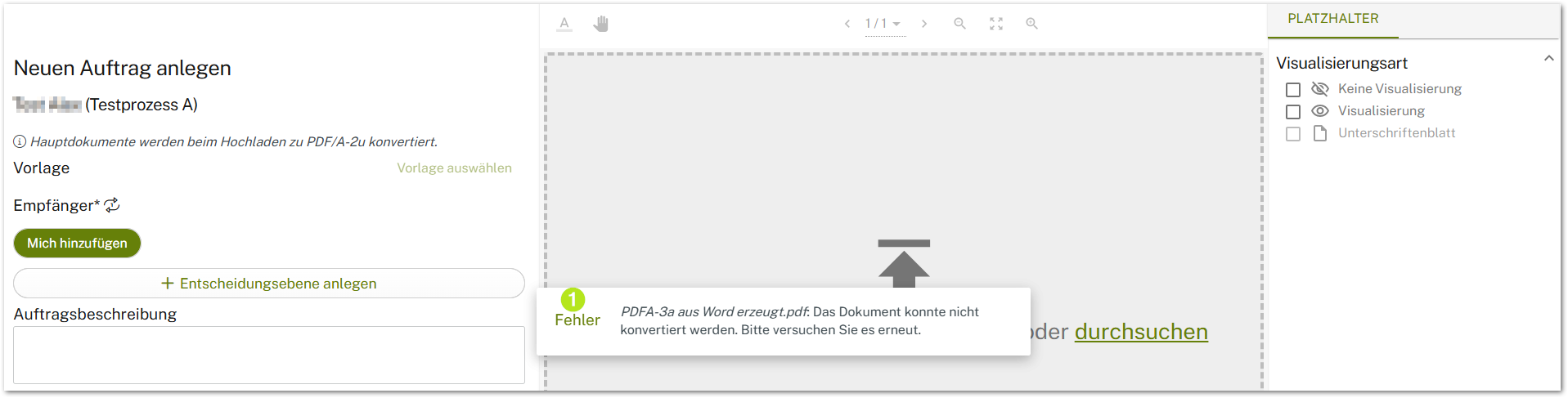
Figure 11: Error message when uploading a PDF/A-formatted document to MOXIS during a process involving PDF/A conversion
PDFs with form fields
PDFs with form fields can only be processed to a limited extent. In this case, form fields cannot be edited in MOXIS. The corresponding documents can only be uploaded and converted, but not modified.
PDFs with PDF signature fields
Please note that PDF signature fields are removed during PDF/A conversion. However, placeholders can be added again after the conversion process is complete.
5. Effects on the log and the detailed view
If PDF/A conversion is enabled, this affects the log and the detailed view.
In the detail view, a note about the PDF/A conversion appears next to the job name. The log notes which standard was used for conversion.