
Process management: Documents-Tab
Content
In the Documents-Tab, you can configure settings for documents and attachments.
1. Definitions
API: An interface consisting of functions and procedures that acts as an intermediary between an application, an operating system, or another service and a client.
MimeType: Also known as Internet Media Type or Mulitpurpose Internet Mail Extensions, this indicates which data is being sent (e.g., application/pdf, image/jpeg, etc.).
PDF/A: An ISO standard specifically tailored to the requirements of archiving.
1.1. The Documents-Tab in Process Management
To open the Documents-Tab in Process Management, go to the Administration area and open Process Management. Then click on the base process you want to edit or create a new one. Under Documents (see figure 1 [1]), you have the following options for configuring the process.

XiTip
Please note: The options shown in this tab depend on the basic configuration of MOXIS, which was created in collaboration with XiTrust. Therefore, you may see fewer options in your overview. If one of the options would be a useful addition to your current MOXIS instance, please contact your XiTrust contact person.
The Documents-Tab (see figure 1 [1]) is divided into several sections:
General settings (see figure 1 [2])
Settings for documents to sign (“main documents”) (see figure 1 [3])
Settings for attachments (see figure 1 [4])
Default signature position settings (see figure 1 [5])
PDF-A Validation (see figure 1 [6])
Enable/Disable download of documents for externals before signature (see figure 1 [7])
Use the [Save]-, [Reject]-, or [Delete]-button to save, discard, or delete your changes (see figure 1 [8]).
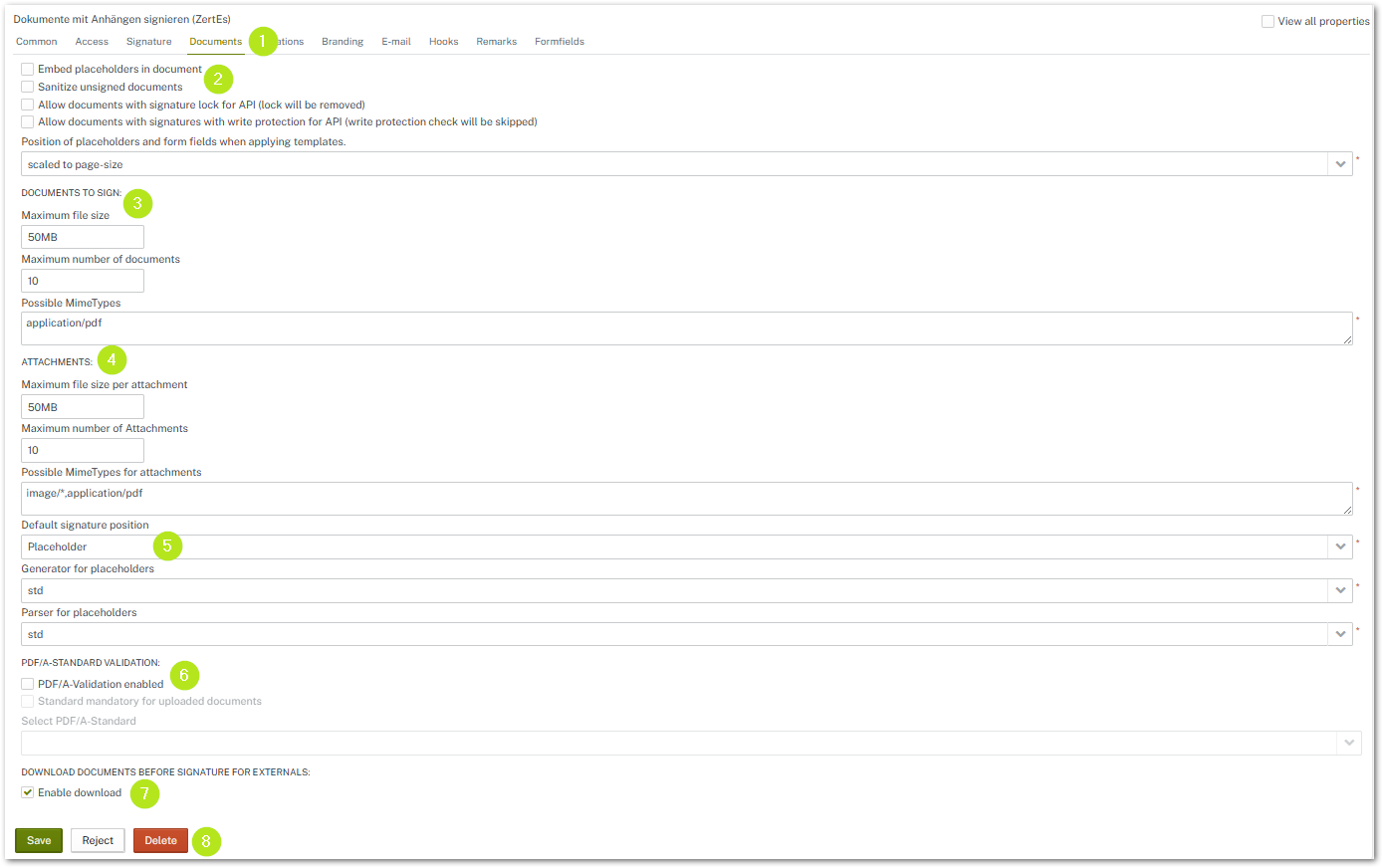
Figure 1: Settings for documents in the process management
1.2. Manage general settings in the Documents-Tab
In this section, you can activate various settings by checking the corresponding boxes (see figure 1 [2]). Please note the following for each item.
Embed placeholders in document: Allow placeholders to be embedded in the document.
Clean up unsigned documents: This feature cleans up the PDF structure of unsigned documents.
Allow documents with signature lock via API: Lock is removed.
Allow documents with signature write protection via API: Write protection is skipped.
Positioning of placeholders and form fields when applying templates: There are two basic settings here (see figure 2). Placeholders and form fields can be scaled to page size (see figure 2 [1]). This means that the size always adapts to the page size. It therefore does not matter whether an A3 or A4 document is signed; the placeholder or form field always has the same size in relation to the page.
For all other options, the position is always calculated from the corresponding corner (see figure 2 [2]). The placeholders and form fields are not scaled with the page sizes.
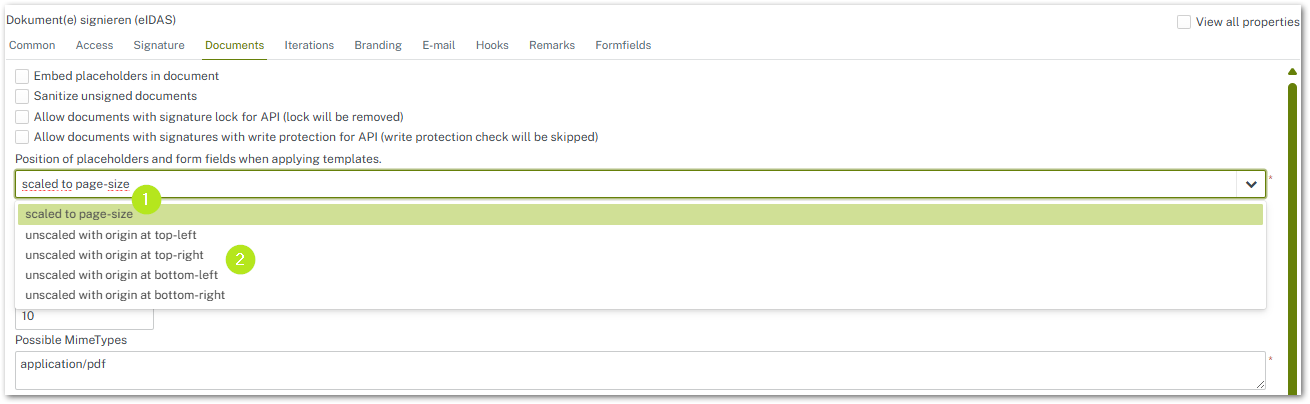
Figure 2: Position of placeholders and form fields when applying templates
1.3. Managing settings for main documents in the Documents-Tab
In this section, you can set various settings for main documents (see figure 1 [3]). Please note the following for each item.
Maximum document size: The maximum document size is set by XiTrust Support in the basic configuration. A smaller limit can be set at any time by the administrator of the MOXIS instance. However, the instance-wide limit cannot be exceeded (see figure 3).
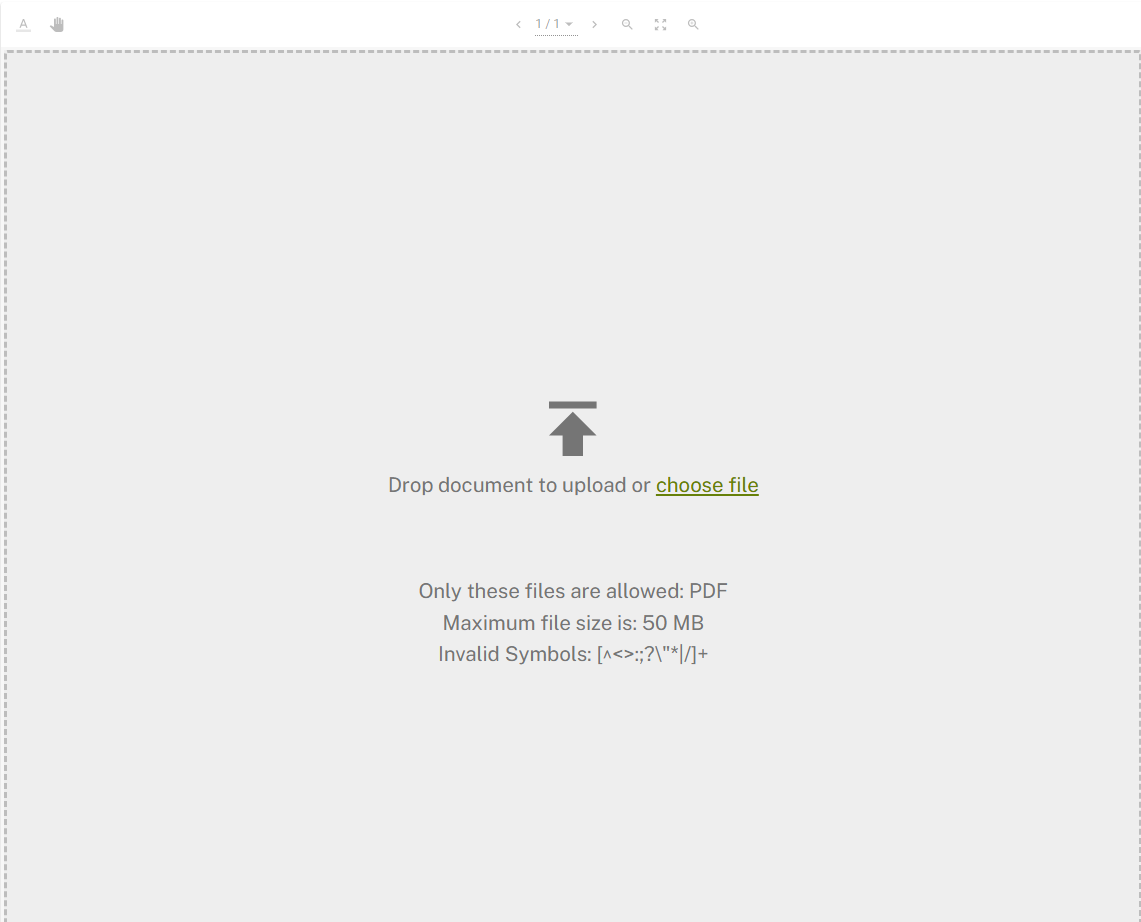
Figure 3: Maximum file size in MOXIS
Maximum number of documents: Ideally, the maximum number of documents should not exceed 100, as some trust centers (such as A-Trust) cannot sign more than 100 documents in a batch.
Permitted MimeTypes: Here you define the permitted MimeTypes that may be used for signature jobs. Please note: If you are unsure about the MimeTypes, please contact your XiTrust support representative.
1.4. Manage settings for attachments in the Documents-Tab
In this section, you can set various settings for attachments (see figure 1 [4]). Please note the following for each item.
Maximum size per attachment: The maximum size per attachment is set by XiTrust Support in the basic configuration. A smaller limit can be set at any time by the administrator of the MOXIS instance. However, the instance-wide limit cannot be exceeded.
Maximum number of attachments: If attachments are also signed, the maximum number of attachments should not exceed 100, as some trust centers (such as A-Trust) cannot sign more than 100 attachments in a batch.
Permitted MimeTypes: Here you define the permitted MimeTypes, i.e., the type of attachments that may be uploaded. Please note: If you are unsure about the MimeType, please contact your XiTrust support representative.
1.5. Manage settings for signature positions in the Documents-Tab
In this section, you can set various settings for signature positions (see figure 1 [5]). Please note the following for each item.
Default signature position: Here you can specify which default signature position should apply to placeholders. You have three options. The following list shows, from left to right, the setting in process management and the corresponding default setting in MOXIS:
Invisible > Default in MOXIS: No visualization (see figure 5)
Placeholder > Default in MOXIS: Visualization (see figure 6)
Signature sheet > Default in MOXIS: Signature sheet (see figure 7)
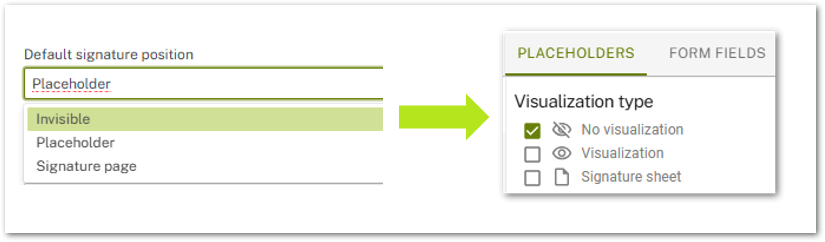
Figure 5: Visualization type: Invisible/no visualization
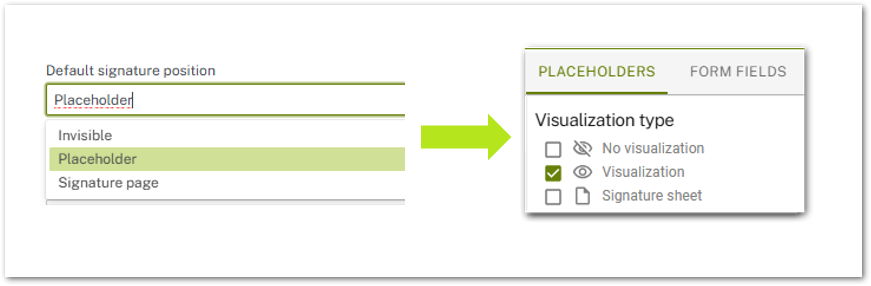
Figure 6: Visualization type: Placeholder/Visualization
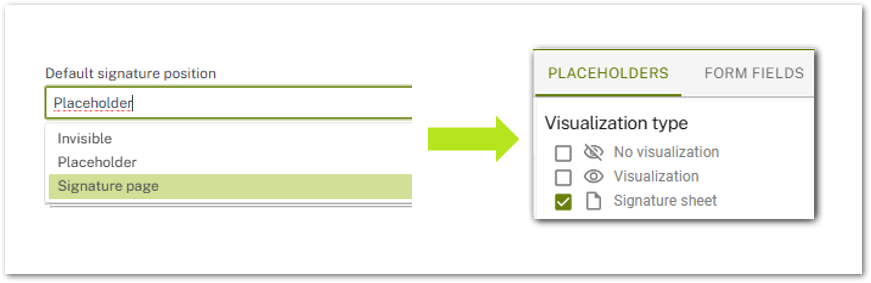
Figure 7: Visualization type: Signature page/Signature sheet
Placeholder generator: General information about the placeholder generator can be found in the MOXIS 4.52 user manual. The std option is the default. Please note: If you have any questions about further configurations of the placeholder generator, please contact XiTrust Support.
Placeholder parser: The std option is the default. The scan-off option (see figure 8) saves time when uploading documents with many images. This is because it ensures that placeholders are skipped during the upload process.

Figure 8: Placeholder parcer
1.6. Manage settings for PDF/A standard validation in the Documents-Tab
In this section, you can set settings for the PDF/A standard (see figure 1 [6]). Please note the following for each item.
PDF/A is a subtype of PDF and is used for the long-term archiving of digital documents. The ISO-standardized version of PDF ensures the long-term readability of PDF documents and meets the requirements for audit-proof archiving.
If you want to activate PDF/A standard validation, please check the corresponding checkboxes (see Figure 9). Please note: If you set the standard as mandatory, only PDF/A-standardized PDFs can be uploaded for signing. You can also choose whether you want to use the PDF/A-1a or PDF/A-1b standard (see figure 9 [1]). Information on the advantages and disadvantages of the various standards can be found here.

Figure 9: PDF/A standard settings
1.7. Manage settings for externals in the Documents-Tab
In this section, you have the option of allowing external signers to download a document before signing it. To enable this feature, please activate the checkbox by placing a check mark in it (see figure 10).

Figure 10: Enable/Disable download for externals before the signature